Google Lens for iPhone: Guide & Tips
The Basics
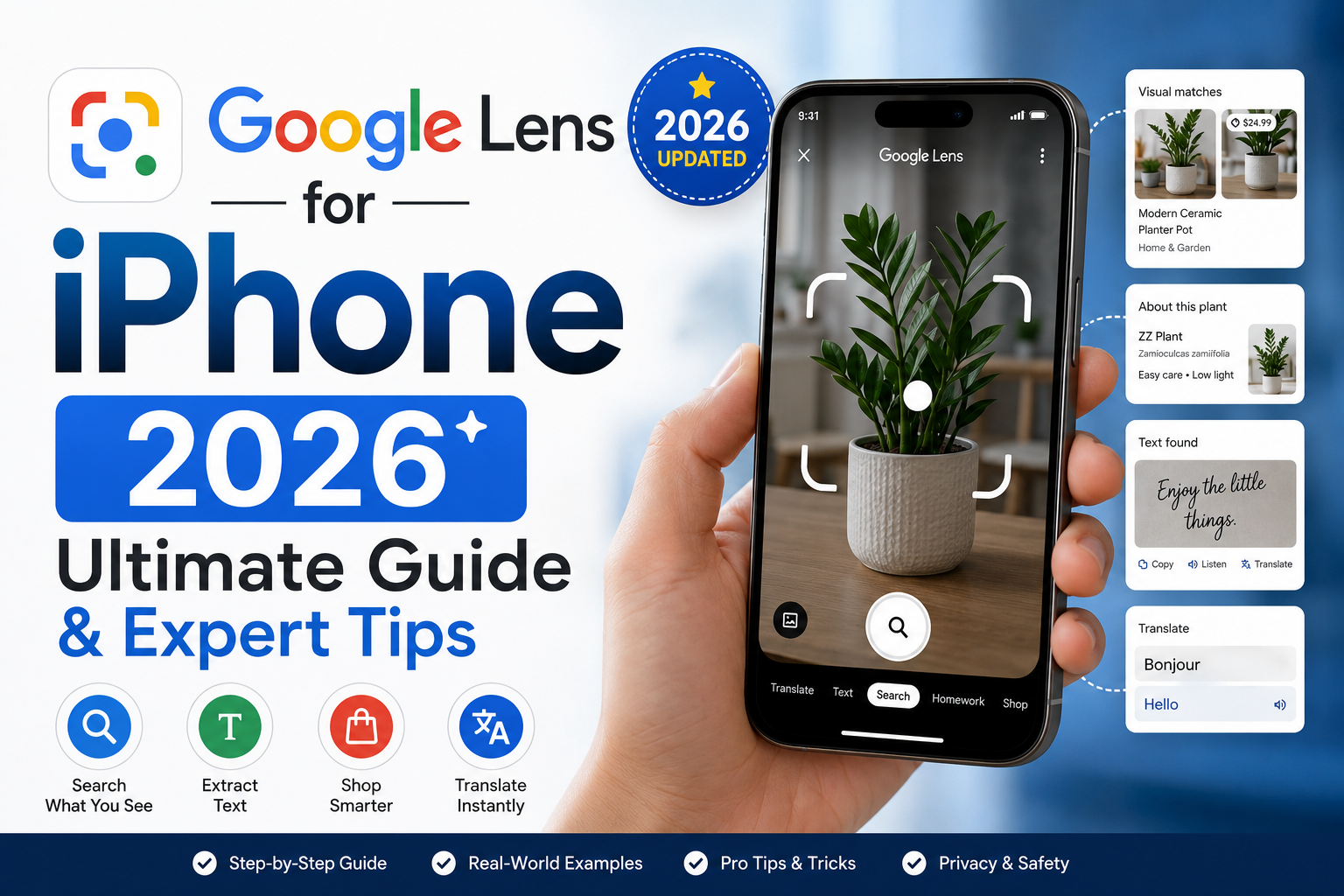
Google Lens is an app that uses AI to help you understand and get information about objects and things you take pictures of with your iPhone camera. You can also get shopping and translation options based on what you take pictures of.
The traditional method of searching the web to find information involves typing out keywords to formulate your search. This is not the case with Google Lens. It allows you to search visually. This app is an easy and fast method of searching for information. For iPhone users, Google Lens works well with Google Photos, the Google app, and other tools and apps that help you search the web.
Google Lens is a great app for people who travel, study, and shop. It is a great time saver and provides real-time information to improve your productivity.
What is Google Lens?
Google Lens is an AI and machine learning visual search tool developed by Google. This tool uses the technology behind computer vision, Optical Character Recognition (OCR), and AI to search for and identify an object or text and provide results.
History of Google Lens
Google Lens was first developed for Android devices in 2017. Since then, Google has expanded compatibility to iOS devices. The iPhone version has improved and integrated with Google Photos, the Google app, and has nearly all the features of the Android version.
How Google Lens Works
Google Lens uses machine learning and AI to analyze the pictures you take in real time. Some of the most important components of Google Lens are:
Object Recognition: This allows users to find and identify objects, animals, plants, and landmarks.
AI Analysis: Visual patterns in a picture are matched with those in Google’s database.
Actionable Results: Links, shopping, translation, suggested items.
Features of Google Lens on iPhone
Instant Object Recognition
Google Lens can quickly identify any of the following:
Plants & flowers
Structures (landmarks, buildings, etc.)
Animals
Art
Logos & brands
Travelers, students, and content creators will benefit the most from this feature.
Text Scanning & OCR
Google Lens can easily recognize printed/handwritten text and lets you do the following:
Copy to clipboard
Scan/Copy/Save Notes
This scanner is a very useful tool for students and employees.
Translation & Language Support
With OCR the text is translated and displayed on the phone frame in less than a second. This feature is excellent for travel and foreign language content, because the translations are in real time.
Shopping & Product Search
This scans any product and lets you do the following:
Identify
Price Comparisons
View similar products
Reviews & Specs
Google lens helps the user buy better.
Smart Text & Copy to Phone
Google Lens helps you copy any typed or handwritten text from pictures to your iPhone. With this, you can:
Paste text into messages or emails
Save info from new contacts
Save links
This feature basically puts a tool for productivity right into your camera.
How to Get Google Lens on iPhone
Google Lens is included in the Google app and the Google Photos app, on iOS.
Getting It Is Simple:
Go to the app store on your iPhone.
Look up Google or Google Photos.
Hit Install.
Open the app and allow access to the camera to use all features.
Keep the app updated to get new features. Using Google Lens on iPhone
Access Through Google Photos
You can use Google Lens to analyze any photos saved on your iPhone:
Open Google Photos.
Pick a photo.
Hit the Lens icon to scan and recognize stuff in your image.
Access Through Google App
If you want Google Lens to recognize something in real time,
Open the Google app.
Hit the Lens icon right by the search bar.
Point your camera to the object you want Google Lens to analyze.
Access Through Safari & Other Apps
You can use Google Lens to scan photos from apps like Safari, by using the share tool and Google Lens, in order to analyze stuff without leaving the app you were in.
Tips & Tricks for Google Lens on iPhone
Use the Focus Mode on your iPhone for better recognition in the dark.
You can scan barcodes/ QR codes, right from the camera.
If you have handwritten notes copy the text to your phone for a quick digitization of your notes.
Pros of Google Lens on iPhone
Saves hours upon hours of time
Perfect for travel
Super productive
Super helpful for shoppers
Amazing for learning
Problems That Mess With Google Lens and How To Solve Them
Lens Doesn’t Work: Check Google App settings.
App won’t open or works slow: Check for updates.
Recognition delay: Check internet speed.
Results are wrong: Focus on the object with better lighting and scan again.
Google Lens vs. Apple Live Text
FEATURES GOOGL LENS APPLE LIVE TEXT
Object recognition YES, Advanced AI NO, Limited to TEXT
Translations 100+ languages YES, Limited to TRANSLATIONS in iOS
Product Search YES NO, Limited Product Search
Text Recognition YES YES, OCR Recognition
Integration Google Photos & Google App All iOS Native Apps like Photos
Conclusion: Google Lens is better at Object Recognition and Product Search, while Apple Live Text has a better integrated, Native Text Extraction in iOS.
Safety and Privacy
Camera access permission should only extended to trusted Apps.
Google Lens processes images both on-device and on Google servers.
It is unwise to scan sensitive documents on public networks.
Look through your Google account for Images Google Lens has accessed.
Common Questions
Is Google Lens Free?
Yes, it costs nothing.
Does Google Lens Work Without Internet?
Some features can only work Offline, but the majority of the functions requirea stable internet connection.
Can Google Lens read handwriting?
Google Lens can read printed text and handwriting.
Can I use Google Lens to shop on iPhone?
Google Lens can read the item and take you to a store online. So, yes.
How good is Google Lens translation?
The translation is good. For some sentences, it may need a little more context.
Does Google Lens keep my pictures?
Be careful. Google Lens is probably looking at your pictures. Check your settings to see what Google can see.
Conclusion
Google Lens for iPhone helps you with a lot of different things. It can help you translate text, identify things, and even increase your productivity.
Google Lens is an amazing resource for iPhone users in 2026.
For more tips and official updates, visit the Google Lens page:
Google Lens Official Page